

How to make a combo layout
How to assemble combos from product components in Figma: file structure, variants, scale and product updates.
We built a system in Figma that lets you assemble new combos quickly and keep a consistent visual style. Products do not need to be recreated every time — they live as components and are reused across layouts. That makes it easier to work with different countries, update products and make fewer mistakes. Components, Variants and Swap Instance keep a large file in order. Used correctly, they let you assemble and update combos neatly, without manual rebuilding. The file in Figma is set up as a system for assembling combos from product components.
How the file is structured
The file consists of a component library and country pages.
Component library. This is where all basic product components live: pizzas, snacks, drinks and other products that can be part of a combo.
Every product must exist as a separate component. Components make it possible to reuse the same product in different combos without rebuilding it manually.
Country pages. The file has two country pages: the UAE and Qatar. Each page corresponds to a separate country and contains a set of combos for that country.
How combos are structured
The main principle: a combo is assembled from ready-made components, not created manually from scratch.
- one combo — one separate frame,
- product components are placed inside the frame,
- the same component can be used in several different combos.
Product variants
Some product components have several variations by:
- size,
- product quantity,
- type,
- portion format.
These variations are made through the Variants feature. Inside the component, each variant has a matching name and, where needed, a numeric value. This helps you quickly see which variant is selected.
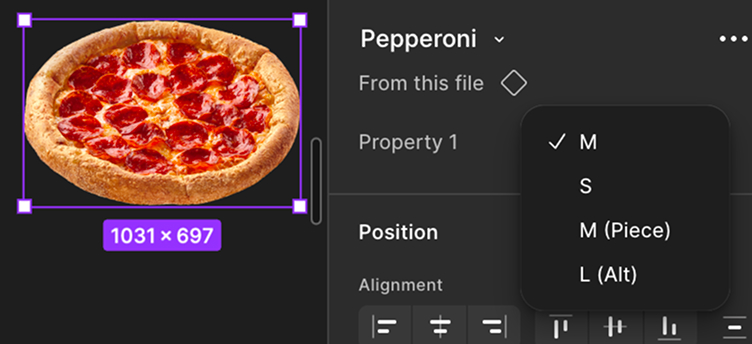
So when assembling a combo, you do not always need to add a new component. If a combo already has a pizza but not the right type, simply swap it for the needed variant. That version already exists inside the current component — you can select it from the dropdown in the right Figma panel.
Before replacing a component with another one, first check whether the needed variant already exists in Variants.
Product scale
When assembling a combo, consider not only composition, but also the real physical size of products relative to each other.
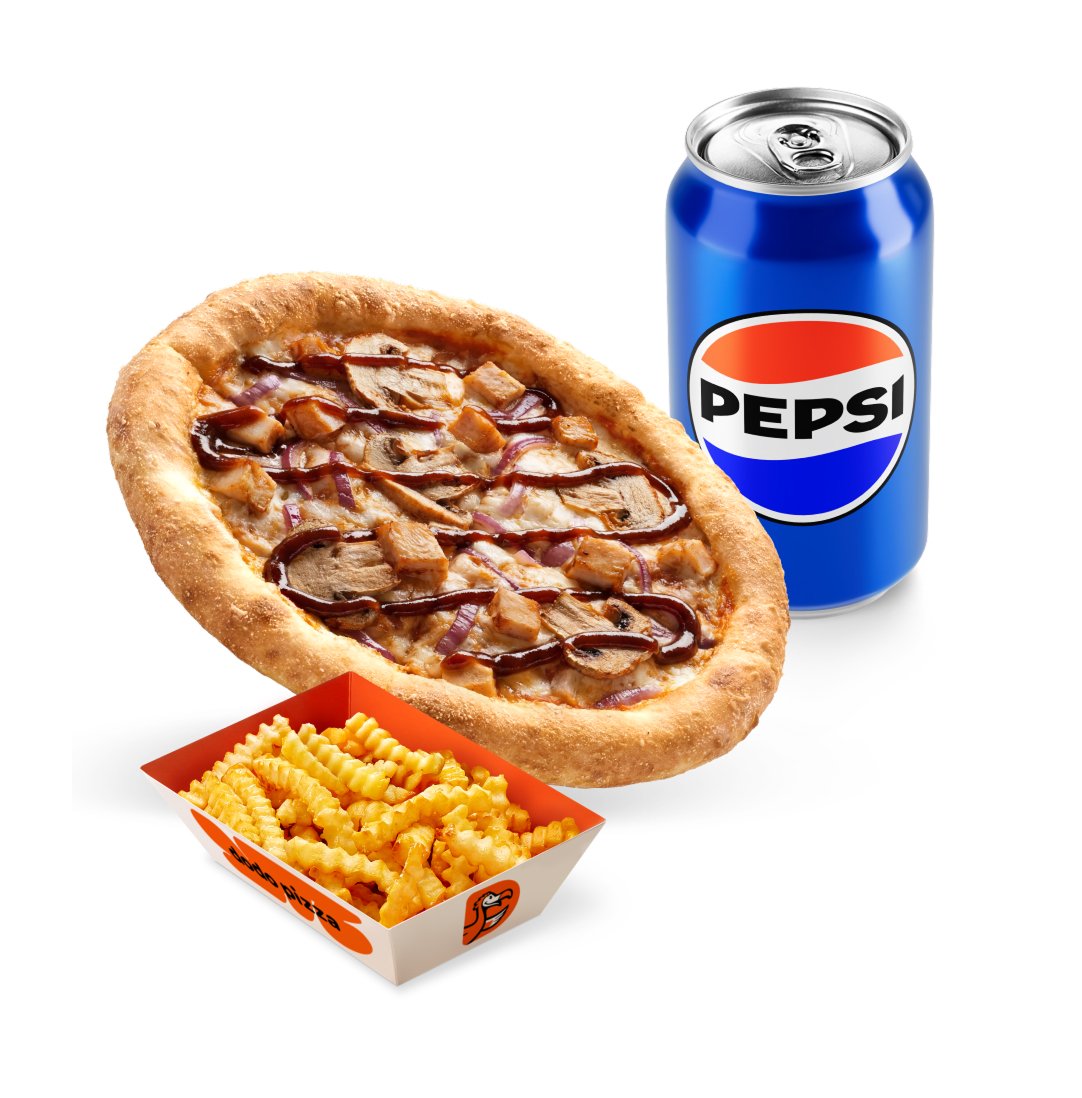
Components in the library may be the same or similar size in pixels, but the products themselves differ in real size. So when assembling, check manually that products look proportionate.
Main rule: the pixel size of a component in Figma is not always equal to the physical size of the product.
No
Yes
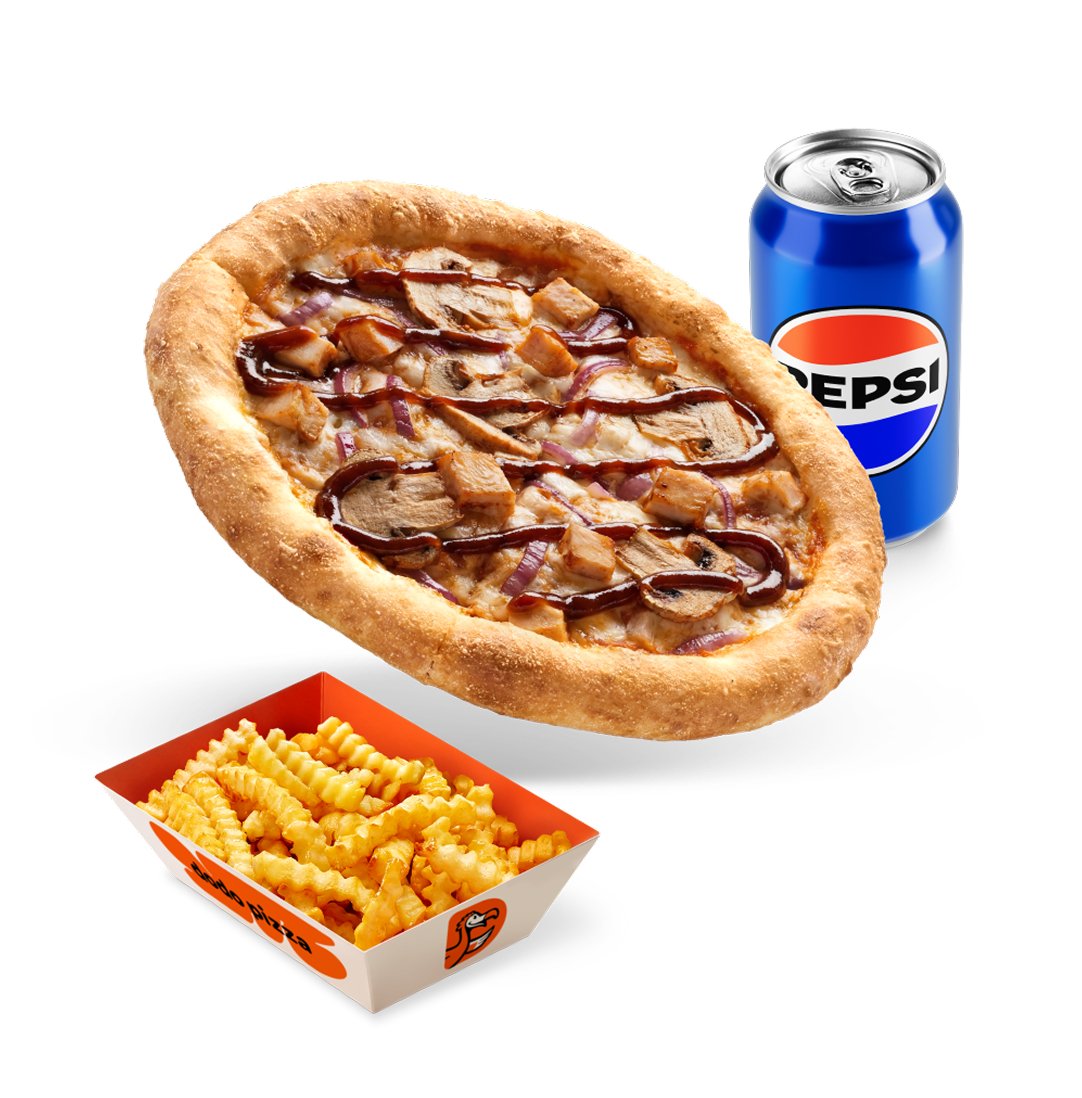
Base unit of scale. Use the largest product in the combo as the scale base. Usually this is a large pizza or an open pizza box.
Treat this product as the 100% scale base. All other products in the same frame should be scaled relative to it.
Scale guide
The scale guide is a reference for how to relate the sizes of different product types in one combo. It helps the composition look realistic: products keep recognizable proportions and do not compete with each other in size.
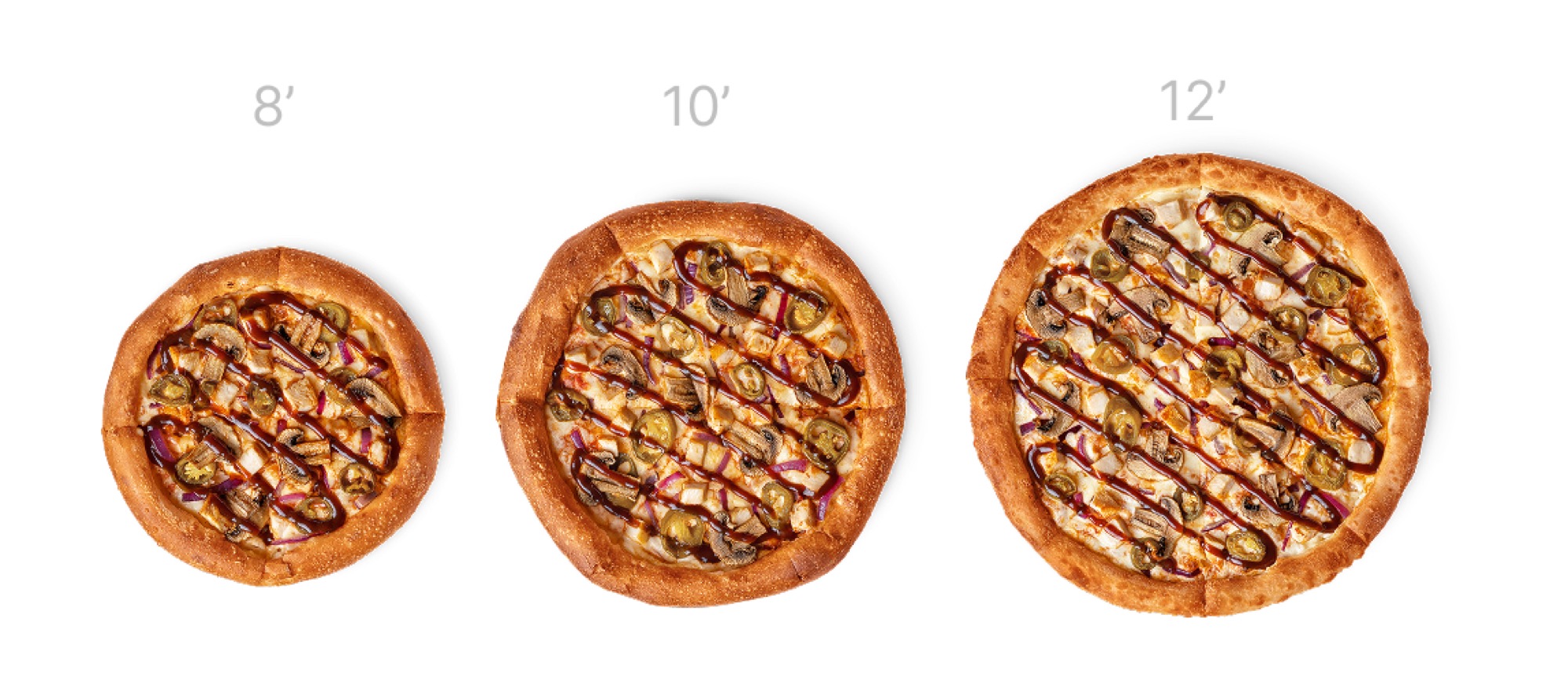
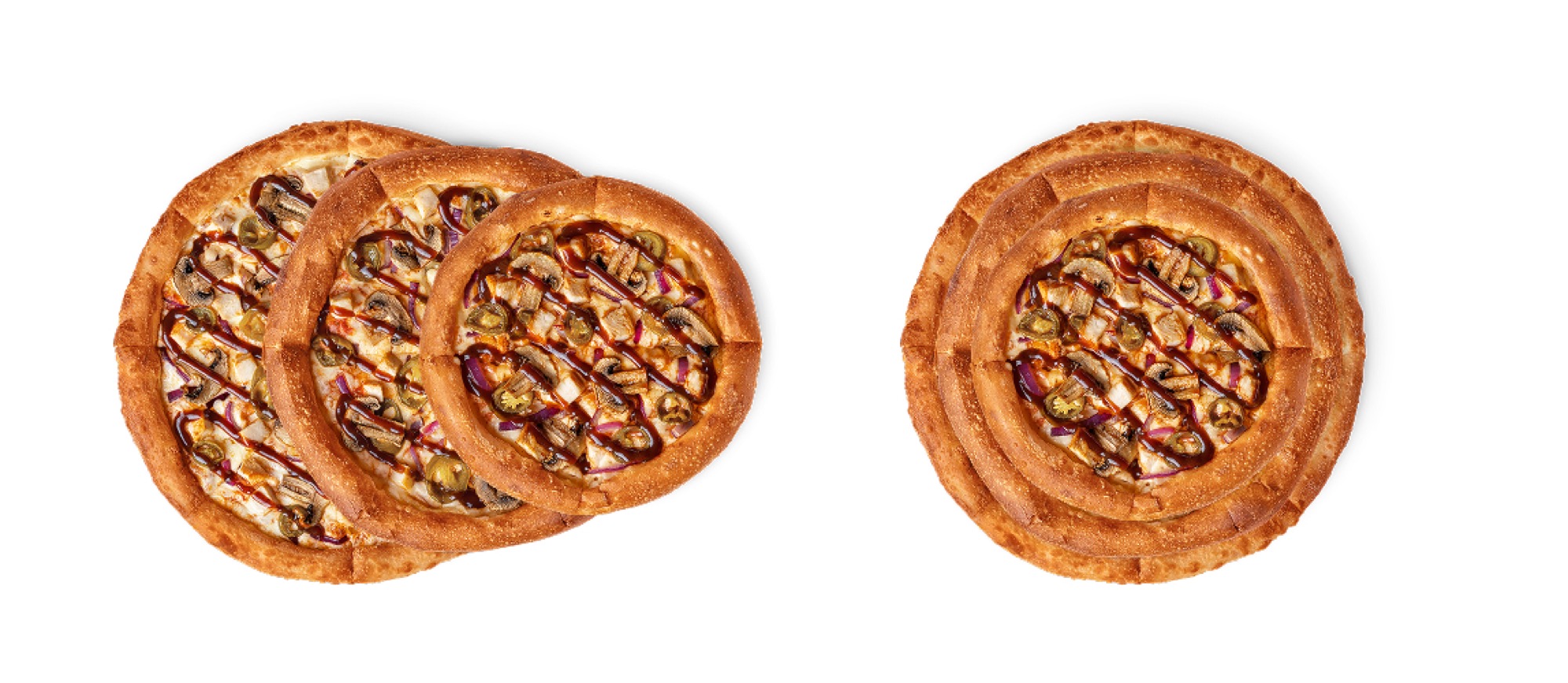
Pizzas. Large, medium and small pizzas differ not radically, but roughly by the thickness of the crust. So the difference should be visible, but not excessive.
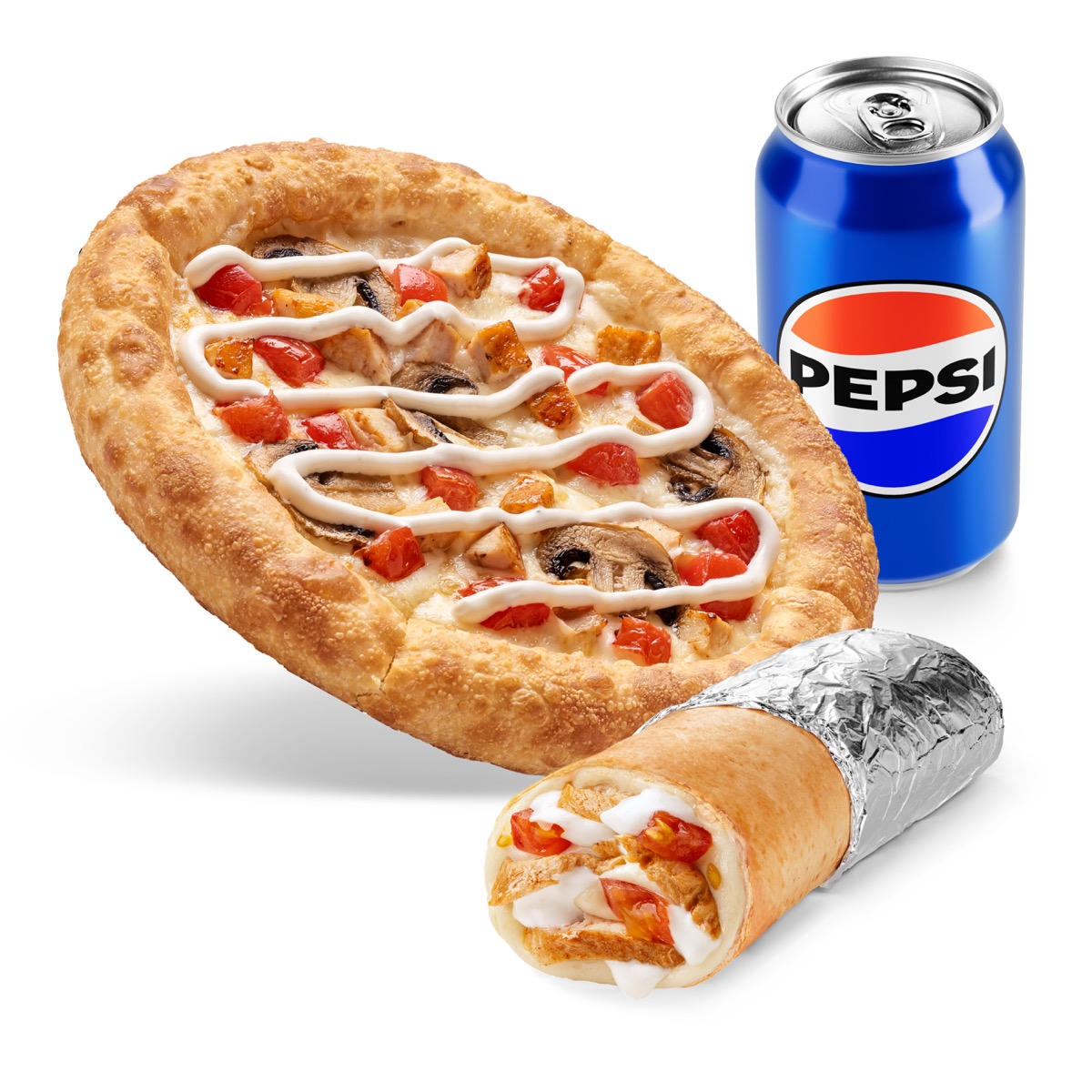
Snacks. Usually smaller than pizza, but large enough for the product to remain clear.

Sauces. The smallest product in the composition. It should stay visible, but must not compete in size with the main products.
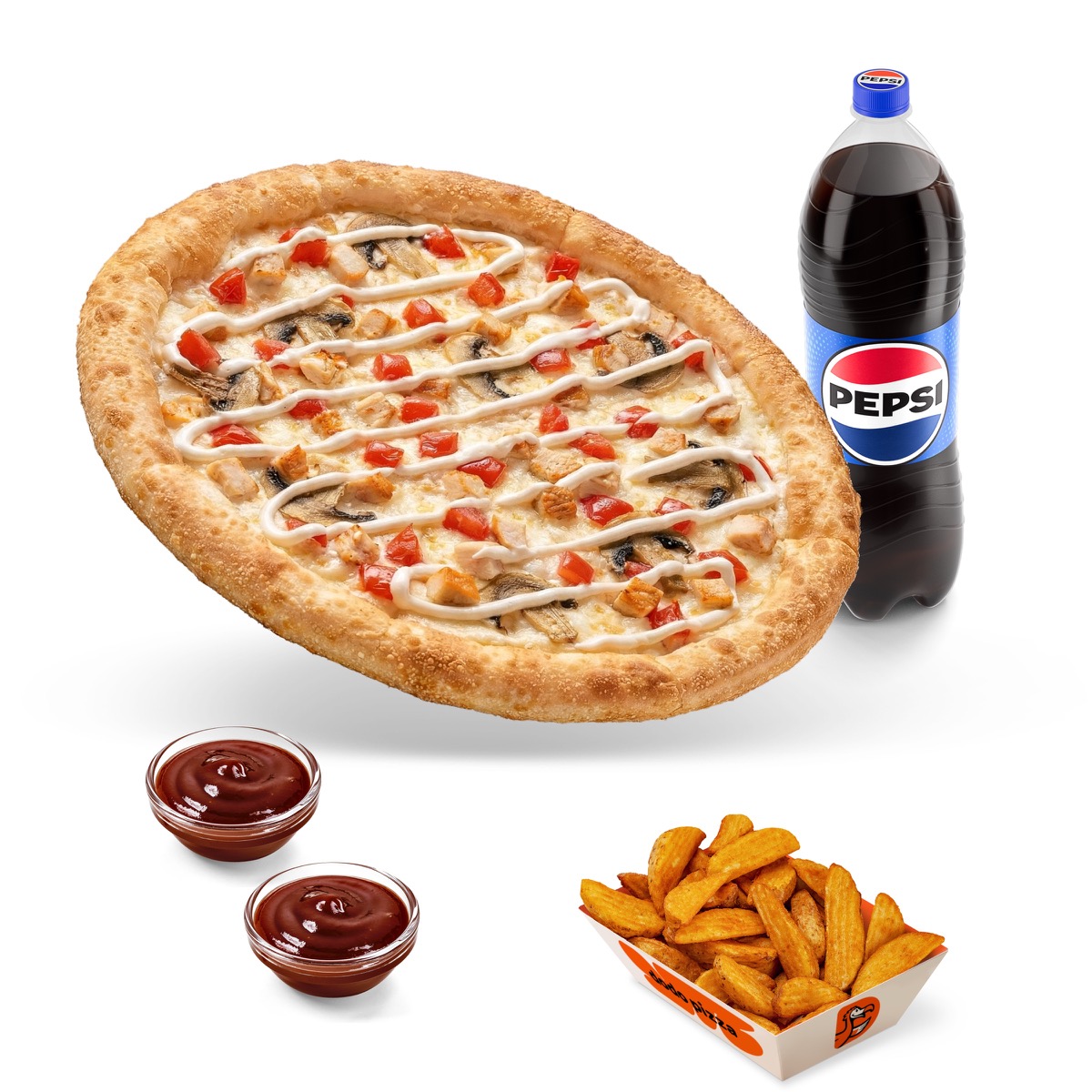

Drinks. Often taller than other products, so scale them carefully. A drink should not visually become the main object.

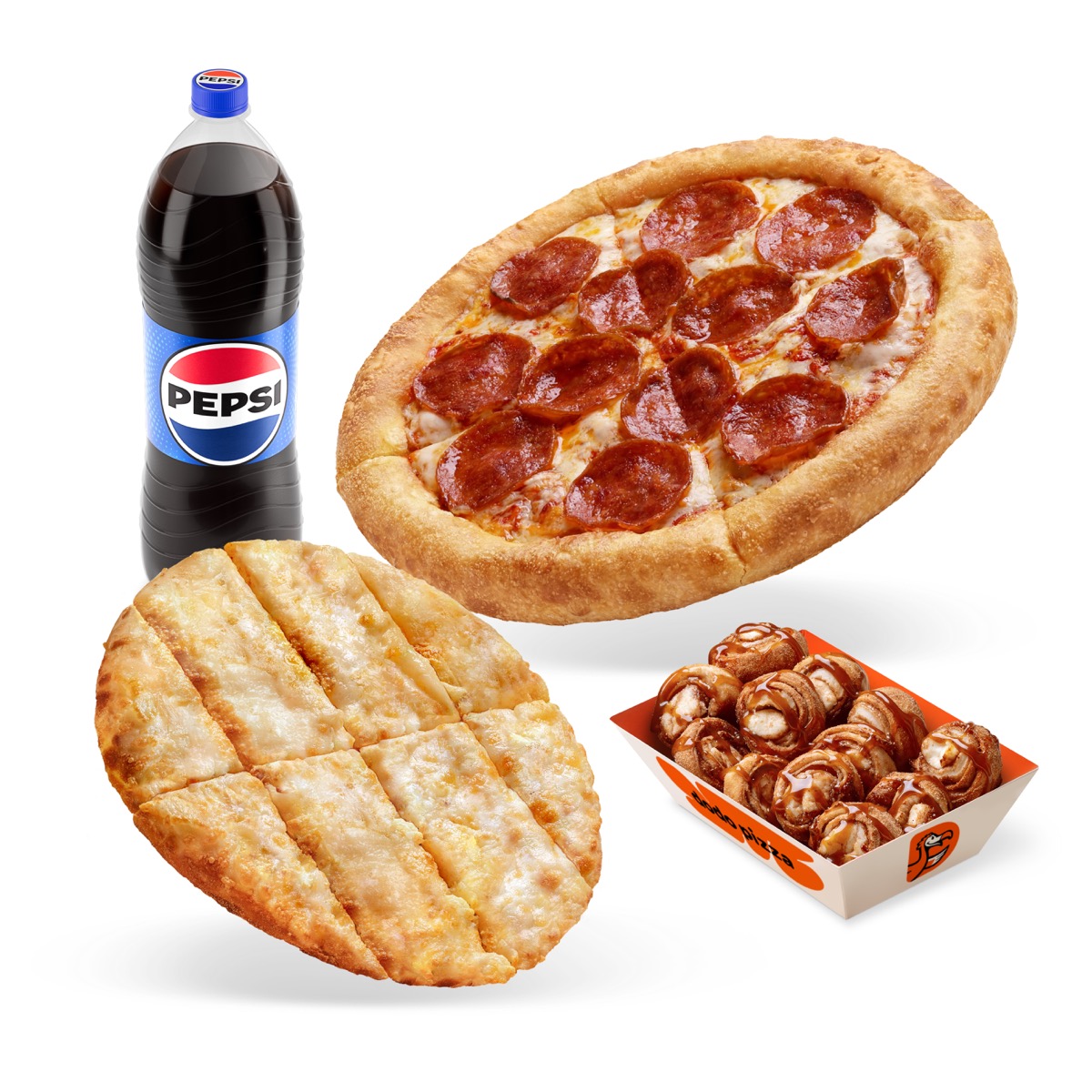
Several identical products. If a combo has several identical products, they must share the same scale. Do not enlarge the same product just because it is closer to the center.
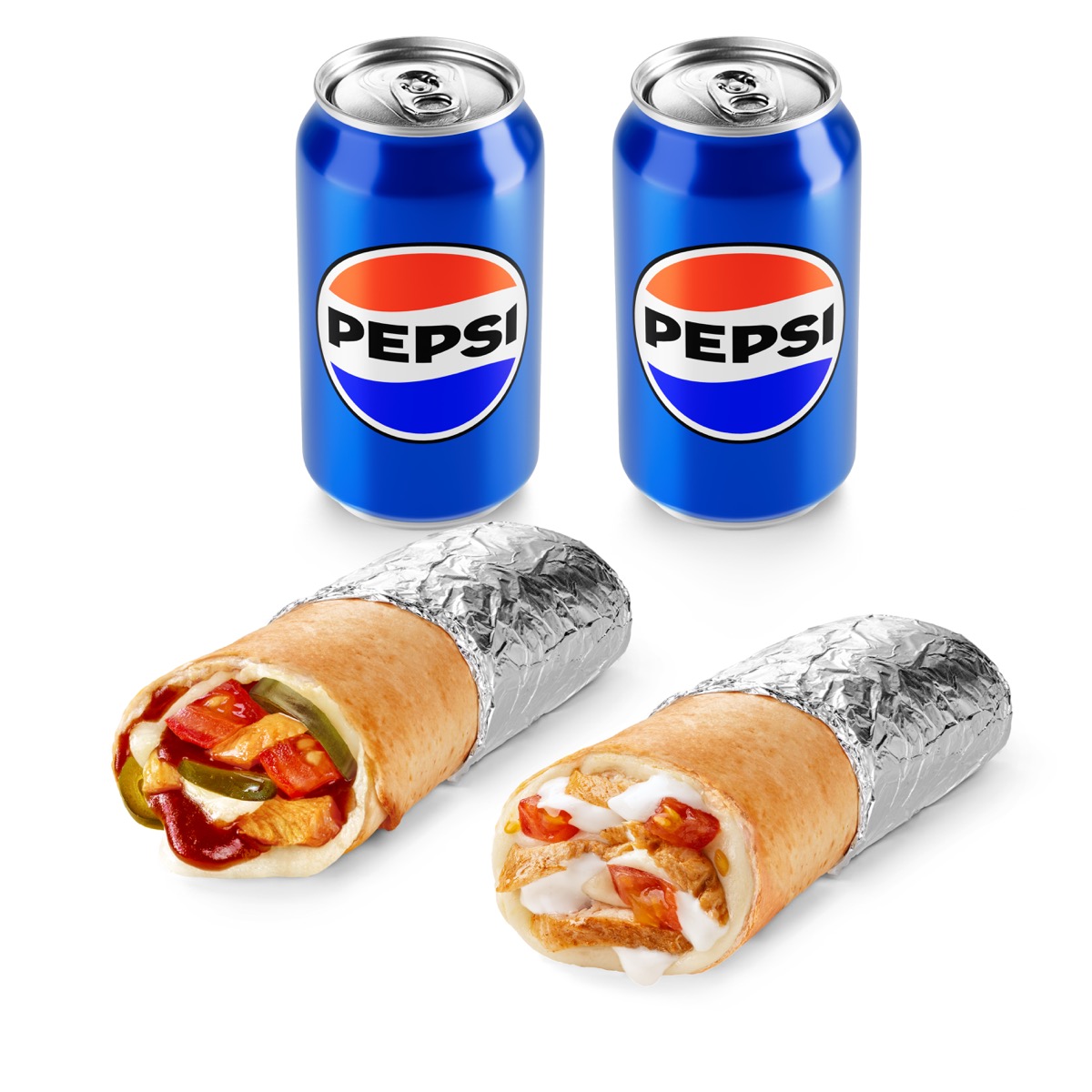
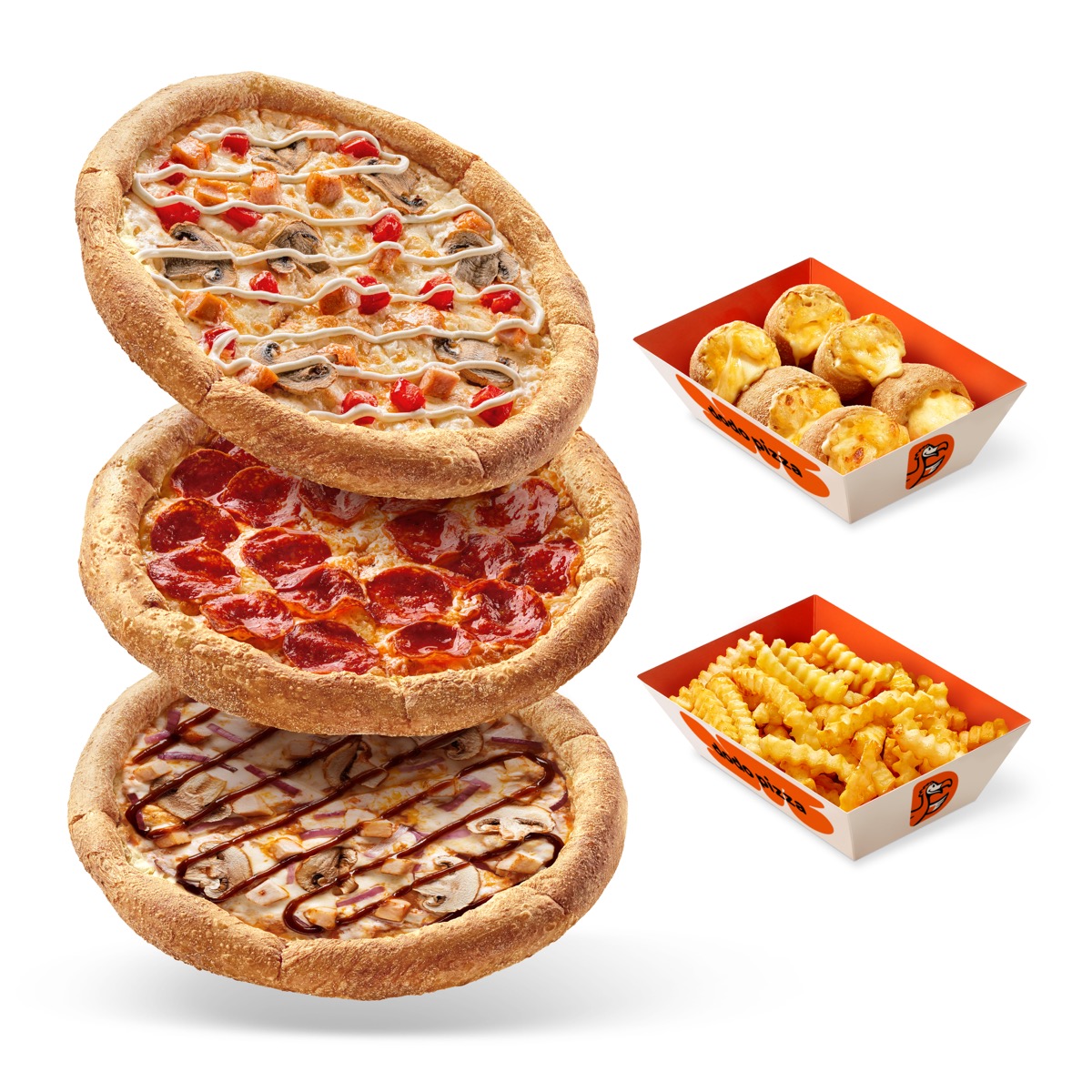
Products with different quantity. Prefer showing quantity through product repetition, a stack, a badge like ×2, ×3, and so on.
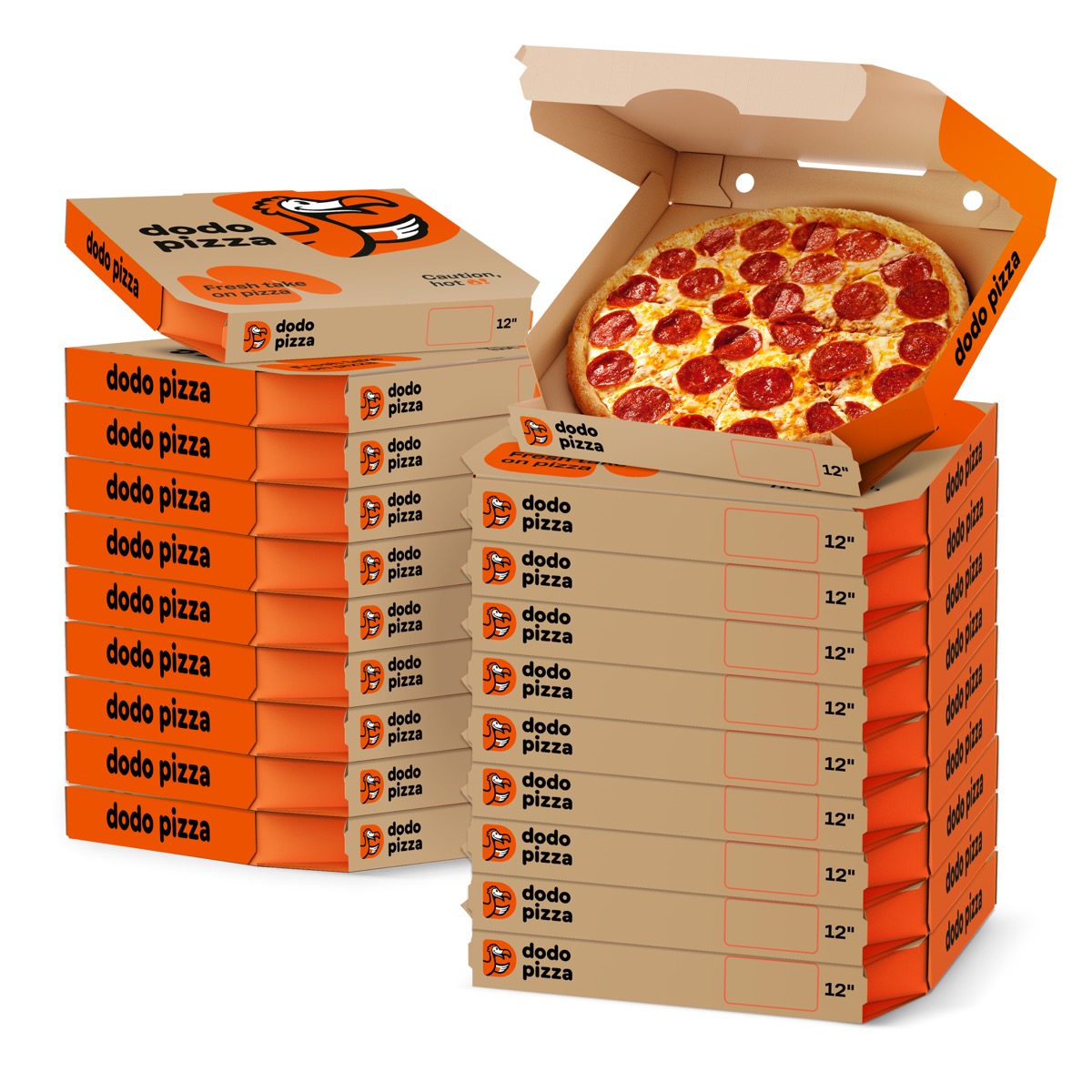
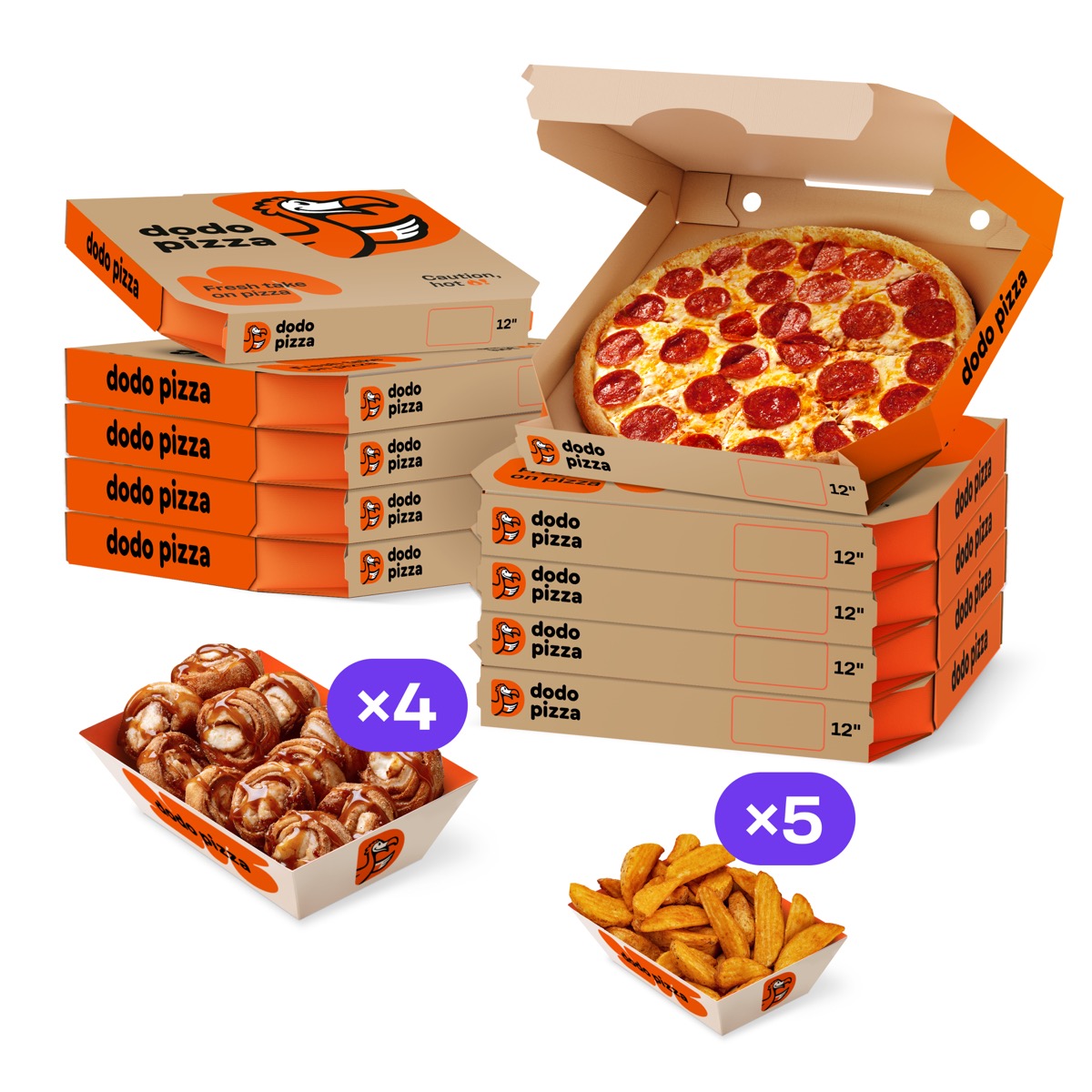
Compositional scale
Sometimes you can slightly enlarge or reduce a product for composition. Allowed deviation: about ±10–15% from the logical scale.
You can do this if you need to:
- improve compositional balance,
- make the main product more noticeable,
- keep a small product readable.
But do not break the basic size logic. A small pizza must not look like a large one, a sauce must not look like a bowl, and a drink must not appear larger than the main product.
How to assemble a combo layout
To simplify the work, you can reuse ready-made combo sets. If the file already has a combo that is very similar to the one you need, do not build everything from scratch — take the ready frame as a base.
Workflow:
- Find a ready combo that is as close as possible in content and composition.
- Copy the frame.
- Replace only the products that differ.
- Check the scale of the new products relative to the ones already in the composition.
- If needed, adjust size, spacing and visual balance.
This helps you:
- assemble new combos faster,
- keep a consistent visual style,
- avoid breaking an already tuned composition,
- make fewer scale mistakes,
- reuse already checked proportions between products.
But even when working from a ready combo, recheck the scale — especially if pizza size, product type or quantity changes.
How to replace a product in a combo
- Select the product component inside the frame.
- First check whether the needed product version exists in Variants.
- If the needed size, quantity or type already exists inside the component, select it from the dropdown in the right Figma panel.
- If there is no needed variant, replace the component with Swap Instance.
- After replacing, check: product size, position inside the frame, spacing, visual balance and whether the product is correct for the selected country.
Prefer Swap Instance over deleting the component and rebuilding the element manually.
How to work with Variants
Some components have variants by size, quantity or type. These variants are selected via Variants in the right Figma panel.
Important: switching a variant does not always automatically change the visual scale of the product. For example, if one component contains large, medium and small pizza, after switching variants the small pizza may stay the same pixel size as the large one.
After every variant switch, check:
- whether the new variant matches the real product size,
- whether a small product looks too large,
- whether a large product looks too small,
- whether the scale relative to the other products in the same combo is still correct.
How to assemble a new combo
- Go to the needed country page: UAE or QA.
- Create a new frame or copy an existing one that is closest in structure to the new combo.
- Replace the products inside the frame with the needed components from the library.
- If the product has Variants, select the needed size, quantity or type from the dropdown in the right Figma panel.
- Check the composition: products are placed correctly, nothing is misaligned, and all elements belong to the right country.
- Rename the frame so it is clear which combo it is, using this structure: [Country] — [Combo name] — 1875×1875 px. For example: AE — Meal for Me — 1875×1875 px. Use the same naming principle throughout the file.
How to update a component
If a product has changed and the change should apply across all combos, update the main component in the library.
Steps:
- Go to the component library.
- Find the needed main component.
- Make the changes.
- Review the combos where this product is used.
Before changing the main component, make sure the change should really apply to all combos where it is used.